More tools should not mean more places to look.
As teams add AI assistants, specialist websites and new services, the first problem is often surprisingly ordinary: knowing where to start.
Read the articleYour company’s tools. Your desk.
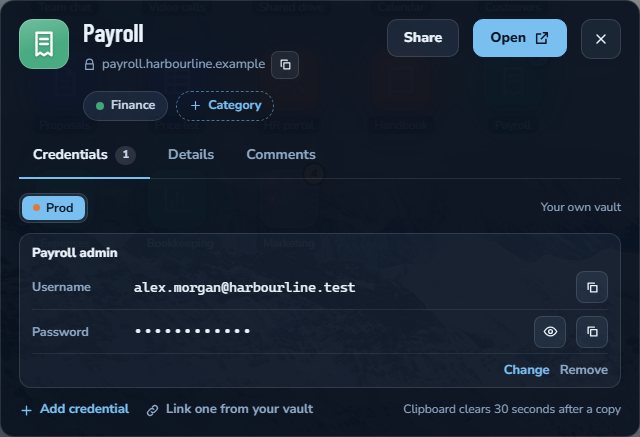
Every web tool your team works in, with the sign-in for each. One browser desktop that everyone can arrange their own way.
Nothing to install. Your organization starts with you.
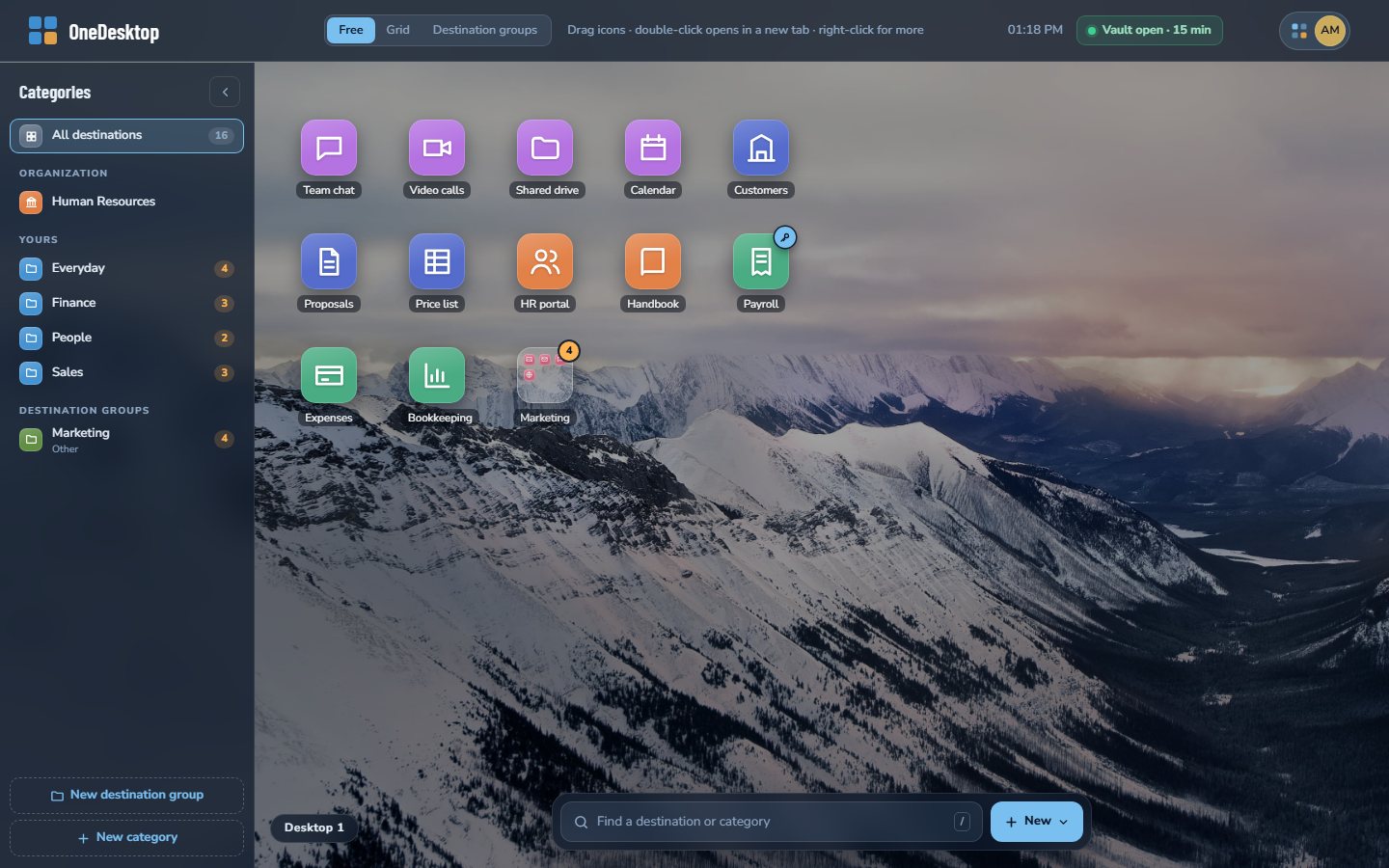
New tools keep arriving. OneDesktop gives them a familiar home, alongside the tools your company already relies on.
Organization and team desktops reach everyone automatically.
Open the tool and copy its password in one action. Nobody emails a password again.
Arrange icons, group tools and keep separate named desktops.
Whoever looks after your tools, the office manager, IT or the owner, sets up the foundation. Team admins look after their own tools. Every person gets room to arrange a working day that makes sense to them.
Explore OneDesktop for teamsIf your work happens in a browser, it belongs on the desk. Each team keeps its own tools, and every person sees the ones they use.
The social scheduler, the ads accounts, the newsletter, the brand folder and the website editor, each with its login.
The customer list, the proposal tool, the call app and the price list, ready before the first call of the day.
Payroll, time off, the handbook and the onboarding checklist, with a desk waiting for every new starter.
Banking, invoicing, expenses and the accounts package, with the shared logins kept safe instead of passed around.
Bookings, suppliers, deliveries and the shared drive, on a computer at the desk or a phone out on site.
Websites, servers, remote desktops and databases side by side, and fewer “where is the link?” questions from everyone else.
A working desktop brings the destination, its sign-in and the people responsible for it into the same place.
A new starter signs in to a desk that already holds the team’s tools and logins. No list of links to chase.
How onboarding worksA launcher, list or swipe cards. A Vault tab for passwords and 2FA. Install from the browser.
See the phone experienceCredentials encrypted in the browser. A separate vault password. Clear sharing and handover boundaries.
Read the security detailsPractical reading for the people who organize tools, welcome colleagues and keep teams moving.
As teams add AI assistants, specialist websites and new services, the first problem is often surprisingly ordinary: knowing where to start.
Read the articleBuild a repeatable starting point for new colleagues, while keeping account creation and access approval clear.
Read the articleEnding access to a shared workspace is important. So is knowing which passwords and external accounts still need attention afterwards.
Read the articleStart with your team’s everyday tools. Build a shared foundation they can make their own.