The features
A desk for the whole working day.
The web tools your team works in. The sign-in you need when you get there. The colleagues who share them. Together, with room to make it yours.
View every included feature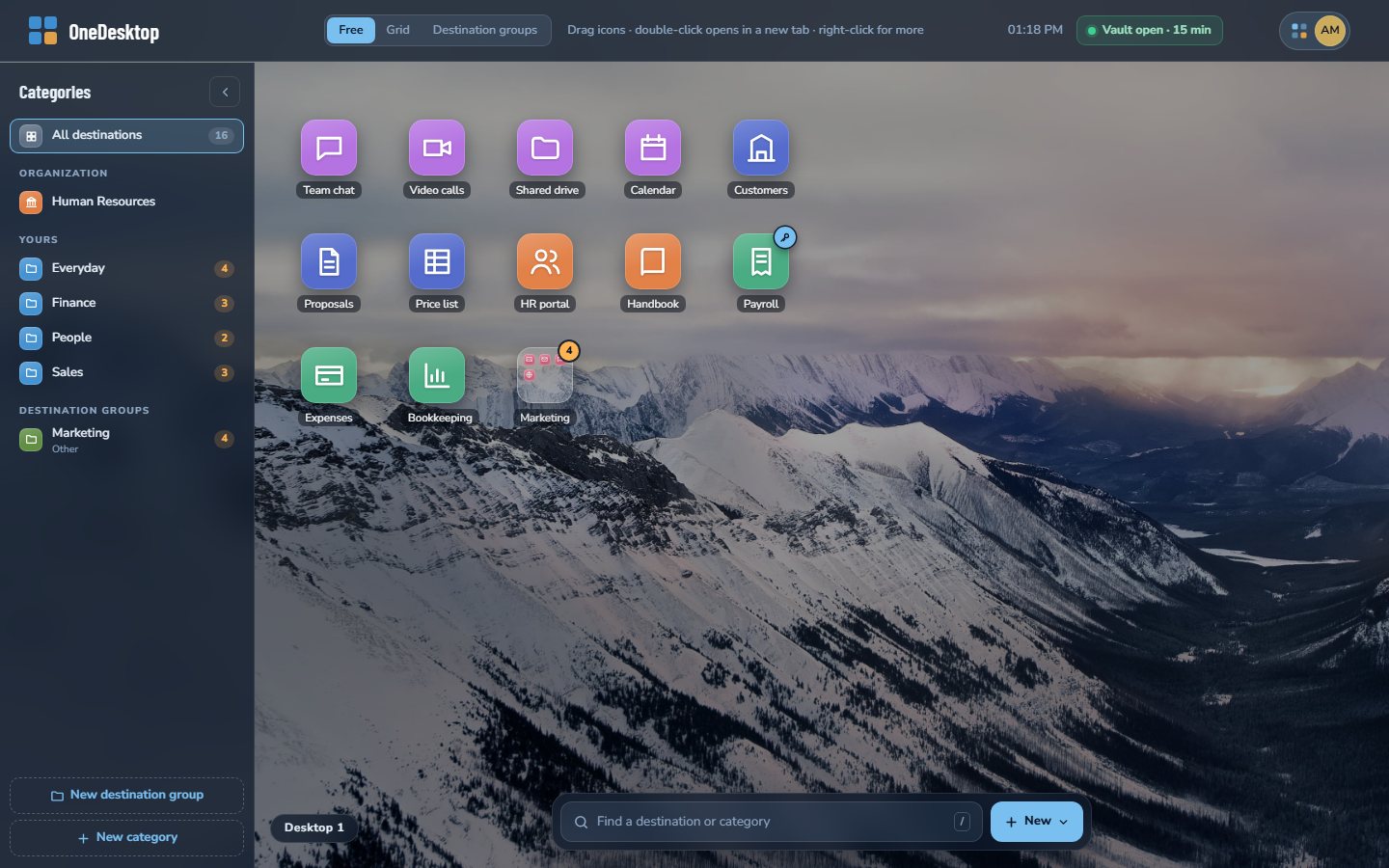
01 / The desk
Your tools, arranged your way.
Choose several named desktops, each with its own wallpaper and layout. Drag icons freely, use a grid, or arrange shelves by category.
- Drag a link from your browser onto the desk, or paste up to 20 at once.
- Each tool’s name and logo are filled in for you.
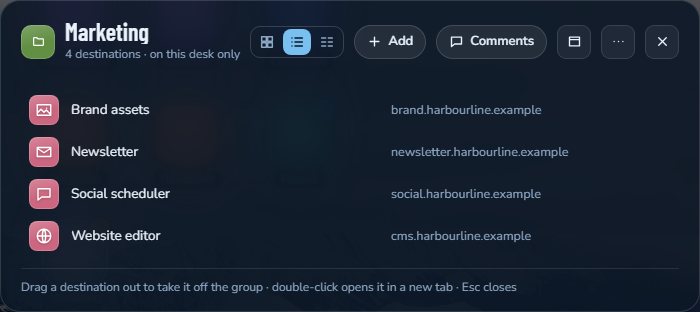
- Group tools into folders; open a group as a grid, list or two columns.
- Search by name or address. Press / to begin.
02 / Shared logins
The password is on the tool it opens.
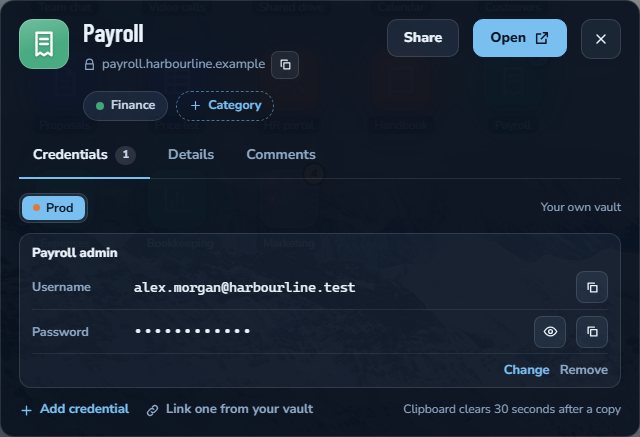
Usernames, passwords, live 2FA codes and useful notes sit on the destination. With the vault open, launch and copy a password in one action.
- Share a team login without sending the password to anyone.
- Keep more than one login for a tool, each with its own label.
- Unlock using a vault password, a device PIN or a passkey.
- Import from Bitwarden, 1Password, Chrome, Edge or Firefox.
- Export a password-protected file when needed.
03 / Working together
Share the work’s starting point.
Share a tool, group, category or entire desktop with a person or team inside your organization. Choose view or edit, with credentials where permitted.
- Ask an owner for access; approve or decline in the app.
- Track requests and waiting actions in the inbox.
- Keep comments on the tool, group or category.
- Hand tools over to a team or the organization.
- See who is active and which tools are used, in Reports.
04 / On your phone
A phone view.
Not a smaller desktop.
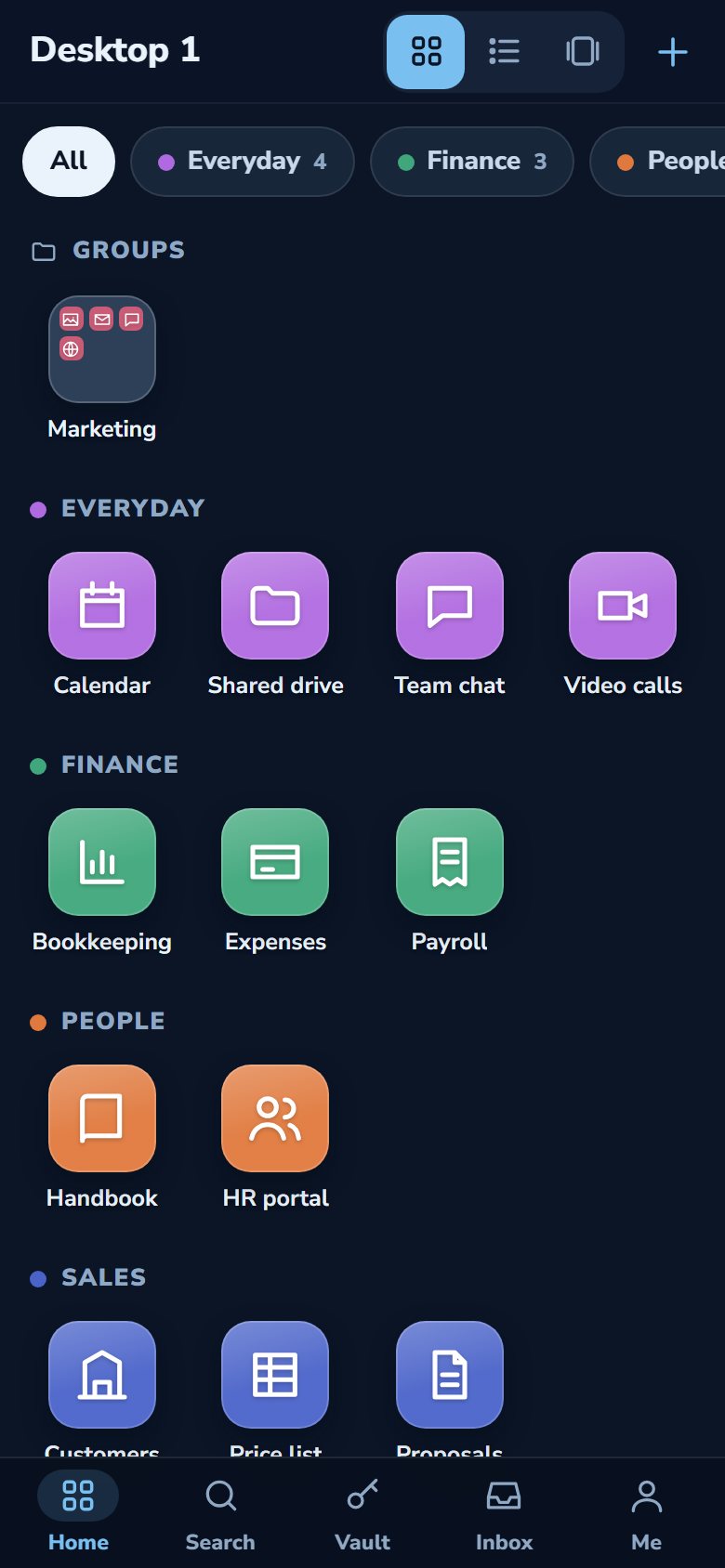
Choose a launcher, a list with copy buttons or swipe cards. Home, Search, Vault, Inbox and Me are always close by.
- Install to your home screen from the browser.
- Tap to open; long-press for details, copy actions and sharing.
- Use the Vault tab for passwords and live 2FA codes.
- Push notifications never show a secret on the lock screen.
Real product; fictional example data.
05 / For IT teams
Servers sit next to the sites.
Give infrastructure the same clear starting point as everyone else’s tools. OneDesktop prepares the next step for the tool you already use.
See the whole toolkit together.
Start with your team’s everyday tools. Build a shared foundation they can make their own.